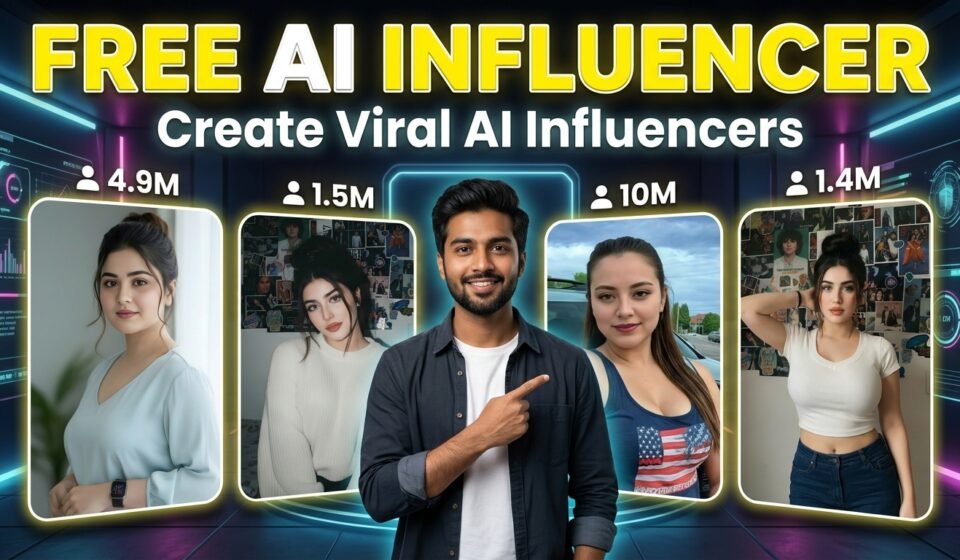

AI influencers are becoming extremely popular on platforms like Instagram, TikTok, and YouTube. Many creators are now building virtual personalities that look realistic, perform actions, and even appear in videos just like real people.
The good news is that you can also create your own AI influencer using a few simple tools. In this guide, we’ll walk through a complete step-by-step process to turn a simple character image into a fully animated AI influencer.
Step 1 – Find a Character Image
The first step is to find a character that you want to turn into an AI influencer.
You can search for character images on platforms such as:
- Google Images
- Stock image websites
Look for a character whose style fits the type of influencer you want to create. For example, it could be a fashion influencer, lifestyle influencer, or fitness personality.
Once you find a suitable image, download it to your device. This image will be used as the base character for your AI influencer.
Step 2 – Create a Unique Face
Since the image you downloaded might belong to a real person or already exist online, it’s important to slightly modify the face so your character becomes unique.
For this step, you can use tools like:
- Lovart.com
- Google Gemini
Upload your downloaded character image and use the following prompt.
Unique Character Generation Prompt.
Using the uploaded image as a reference only, create a completely new and unique face.
The generated face should differ noticeably from the original person, while drawing light inspiration from elements such as face shape, bone structure, and general style.
Avoid recreating or closely resembling the original individual.
This prompt will generate a fresh face while maintaining a similar style, making your AI influencer look unique.
Download the generated image once the result looks good.
Step 3 – Upscale the Image
To make your AI influencer look more professional and detailed, the next step is to upscale the image.
You can use any online AI upscaling website such as:
- Upscale.media
- Let’s Enhance
- Any other AI image upscaler
Upload your generated image and upscale it to a higher resolution. This will improve the details, making the character look sharper and more realistic.
Download the upscaled version once it’s ready.
Step 4 – Use a Reference Video for Action
Now we need a reference video to copy the pose, movement, or action.
You can find these reference videos on:
- TikTok
- Any short video platform
Choose a video that has the type of action you want your AI influencer to perform.
For example:
- walking
- dancing
- posing
- talking to the camera
Once you find a suitable video, take a screenshot of the first frame of the video. This image will be used as the pose reference.
Step 5 – Match the Character with the Reference Pose
Now go to Lovart.com again.
Upload two images:
Image 1 → the screenshot from the reference video
Image 2 → your upscaled AI character image
Then use this prompt.
Pose/Outfit Changing Prompt
Create a realistic image where the character from Image 2 is used as the subject.
Preserve the subject’s face, body, and identity from Image 2 exactly.
Make the subject pose and dress exactly like the character in Image 1, including the same outfit, posture, body position, and styling.
Use the same camera angle and framing as Image 1.
High realism, accurate proportions, natural lighting.
Do not copy the face or identity from Image 1.
This step will produce an image where your AI character appears in the same pose and style as the reference video.
Download this generated image.
Step 6 – Animate the Character
Now it’s time to bring your AI influencer to life.
You can animate the character using tools like:
- AKOOL
- Wan.ai
Open the Character Swap feature in these tools.
Then upload:
- The reference video
- Your generated character image
The AI will automatically swap the face and generate a video where your AI influencer performs the same actions as the reference video.
After processing, download the final video.
Final Result
By following these steps, you can create a fully animated AI influencer that can perform actions, appear in videos, and be used for social media content.
You can repeat the same process with different reference videos to create multiple pieces of content using the same AI character.
This method allows creators to produce unique AI influencer videos without needing complex animation or expensive software.